


Having established a good foundation to choosing and using the right methodology for getting the best out of computer audio, Vince Luke of AMR concludes by looking at some of the issues you might encounter in setting up a first rate computer audio system.
We are going to focus specifically on some well-known applications that build on the concepts laid down in previous parts of this feature. These are two of the most popular and distinctly audiophile-based programs to help extract good music files. They are not the only options; others – most notably Pure Music and Amarra on the Mac – are available, but there are so many systems on offer, it’s best to concentrate on what you know best.
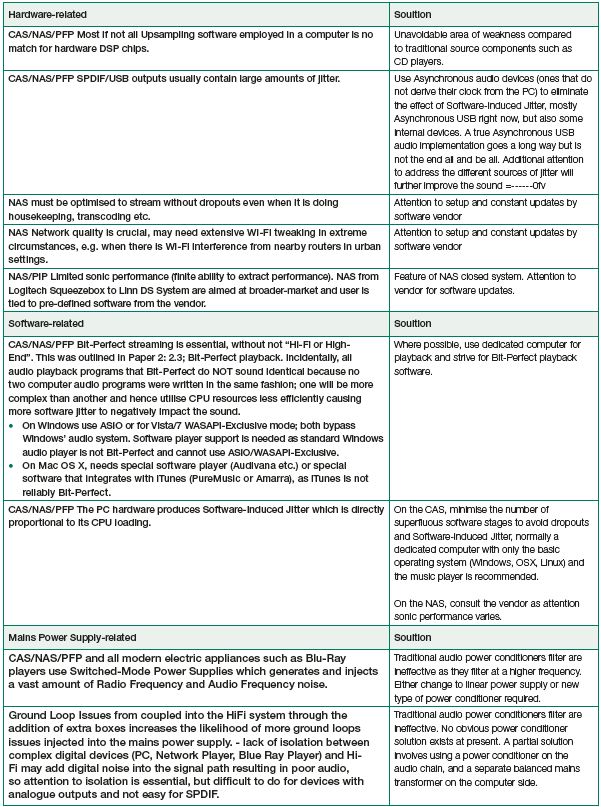
In this case, that’s Audirvana on the Mac OS X platform and J. River Media Center/CMPlay on the Windows platform. All represent fine and bit-perfect players.

Audirvana on the Macintosh OS X
Audirvana is a well-known Bit-Perfect audio program on the Mac OS X platform. The following optimisation guide was kindly provided by Damien Plisson, developer of Audirvana. This version is freeware and is available at www.audirvana.com.
If your OS X is Snow Leopard starting from 10.6.3, then it does not require a USB Audio Class 2.0 driver program to be installed. However, with the latest Lion OS X: Please consult your DAC vendor to con¬ rm that the DAC does/does not require a USB Audio Driver program.
To take advantage of an ‘Integer Mode’, which bypasses certain non-audio processes, please consult your audio playback vendor to con¬firm whether or not this feature is available.
General Optimizations
1. Connect the DAC on a dedicated USB bus
The USB plugs on your Mac are not equivalent. One may be already shared with an internal peripheral like the built-in iSight webcam.
To check the DAC is connected to the right plug:
1. Use the “System Information” application you can launch from the Apple menu, popping the “About this Mac” dialog. Then click on “More info…”
2. Scroll the left column down to the Hardware section
3. Select USB
4. Check on the top right pane that “USB Audio” is listed alone under a “High speed USB bus” section
Connect any other peripherals, such as external hard drives, to another bus, or even to a Firewire or Thunderbolt one.
2. Deactivate screen saver
In System Preferences, Apple Desktop and Screen Saver Preferences, in the Screen Saver tab, set the Screen Saver Activation time to ‘never’.
3. Minimize use of other applications
Other applications might have peak demands on the CPU, the RAM and/or the hard drive, degrading the sound quality, even down to skips in audio playback in case of memory swapping to disk.
Advanced Optimizations
1. Deactivate Spotlight
– Spotlight index updates are hard drive intensive, and thus the cause of sound quality degradation.
– The easiest way is to place all your connected disks in the « Privacy » list (in System Preferences, Spotlight)
2. Deactivate automated Time Machine backups
– Time Machine backups are very hard disk intensive, so the best to avoid any starting during the audio playback is to deactivate the scheduled backups (usually starting every hour).
– In System Preferences, Time Machine, slide the main switch to ‘OFF’.
Audirvana Settings
1. Selecting DAC for audio output
– In User Preferences, Audio System, click on the Change button (in the Preferred Audio Device section on the top of the panel).
– Select USB Audio 2.0 in the drop down list of the popup window.
– Click on Select to close the popup.
– USB Audio 2.0 shall appear under Active Audio Device.
2. Tweaking settings
– Select 4s as the SPL rate switching latency to allow the advanced synchronization locking of the some converters to complete when changing sample rate.
– Normally all the other default settings (all Low level playback options checked) shall give you optimal results. Leave the Max spl rate limit to No Limit as the DAC should not have such limitations, check with the manufacturer).
– If you have less than 4GB of RAM, you may want to lower the Memory allocated for tracks pre-load value to avoid any potential audio dropouts due to swapping to disk of exhausted memory. As a rule of thumb it is best to leave at least 2.5GB RAM to the OS.
– If you encounter some short and frequent audio dropouts and you have a Mac from before 2008 end, this may be due to insufficient USB bus power. A workaround consists in plugging the DP-777 in a USB powered hub that is connected to the Mac. Of course no other device shall be connected on the same hub.
Upsampling
You can force upsampling to the 192kHz, or oversampling to 2x or 4x the track native sample rate.
For this, select the appropriate option in User Preferences, Audio Filters.
Different choices of Sample Rate Converter algorithm are proposed.
Note that SRC libSampleRate is demanding too much computing power for most Macs at its Best quality setting (thus giving in playback pauses).
J. River Media Center/CMPlay on Microsoft Win7
Optimising J. River Media Centre/CMPlay, both of which are Bit-Perfect audio playback programs on the Windows platform, follows along the same broad lines, just on a different operating system. Essentially, once you recognize that what applies, applies universally, the concepts become a lot easier to point at any system.
However, speci¬ cally for these programs, bit-perfect playback simply involves selecting Auto sampling rate switching.
Prior to this, as Win7 is not USB Audio Class 2.0 compliant, you must install the relevant USB Audio Driver for your DAC.
1 Installation of J. River Media Centre
– Go to: http://www.jriver.com/download.html download and install the J. River Media Center program. (30-day free trial or US$49.98 for the full version).
– Once installed, launch J. River Media Center.
– Then navigate to Tools > Options.
– With the Options page open: On the left panel, select Audio.
– On the right panel, make sure the following settings are as follows:
• Output mode: ASIO
• Play silence at start up for hardware synchronization: 4-5 seconds
• Play files from memory instead of disk (not zone-specific): Selected
• Do not play silence (leading and trailing): Unselected
• Cross-fade for sequential album tracks: Unselected*
• Use gapless for sequential album tracks: Selected
*One may wish to try Cross-Fade selected for radio/disco/pop music.
– Then click Output mode settings.
– The ASIO Settings window will open.
– Device, make sure ASIO Driver is selected. (this one is called TUSB but name will vary from one driver to another)
– Buffering, make sure the marker is all the way to left (i.e. maximum buffer).
– Then click OK.
– Click DSP & output format.
The DSP Studio window will open: Make sure NONE of the DSP settings are selected.
And you are done! Now enjoy the sound of your J River system.
Trending Articles
See all
Devialet Astra Streaming Integrated Amplifier
- Apr 07, 2026
DeJitter it NUC-X Music Server Review
- May 26, 2026
SOtM Digital Stack
- May 19, 2026




By Vincent Luke
More articles from this editor
Read Next From Blog
See all

Basis Audio Looking for a New Owner
- May 19, 2026
Teddy Pardo Bluesound Upgrades
- May 16, 2026

From the Editor: Teach a Man to Fish
- May 08, 2026

